Manage your DMARC data in a completely new way. Just by chatting, get account summaries, investigate senders/IPs, send emails to stakeholders, and more.
MCP (Model Context Protocol) is not just another integration. It’s brand a new way to interact with your DMARCeye data using plain language.
In our first MCP announcement, we focused on the big idea: bring your DMARC data into LLMs so you can turn aggregate reports into clear next steps by simply asking questions. In this article, we’ll go deeper into the practical use cases, and talk about what you can actually do once MCP is enabled.
What's in This Guide
- First: What Are Those “get-” and “list-” Items?
- Use Case 1: Instant Account Overview
- Use Case 2: Detailed Analysis (Domain, Sender, and IP Drilldowns)
- Use Case 3: Quick Reports (Fast Answers Without Complex Filtering)
- Use Case 4: Monitoring and Alerts (Stay Ahead of Issues)
- Use Case 5: Team Management and Stakeholder Workflows
- Use Case 6: Generate (and Send) Reports as Emails
- Why DMARCeye and MCP Server?
First: What Are Those “get-” and “list-” Items?
In the DMARCeye app, you’ll see a set of supported tools with names like get-account-report or get-domain-source-report. These are “tools” that your AI assistant can use to retrieve data from DMARCeye.
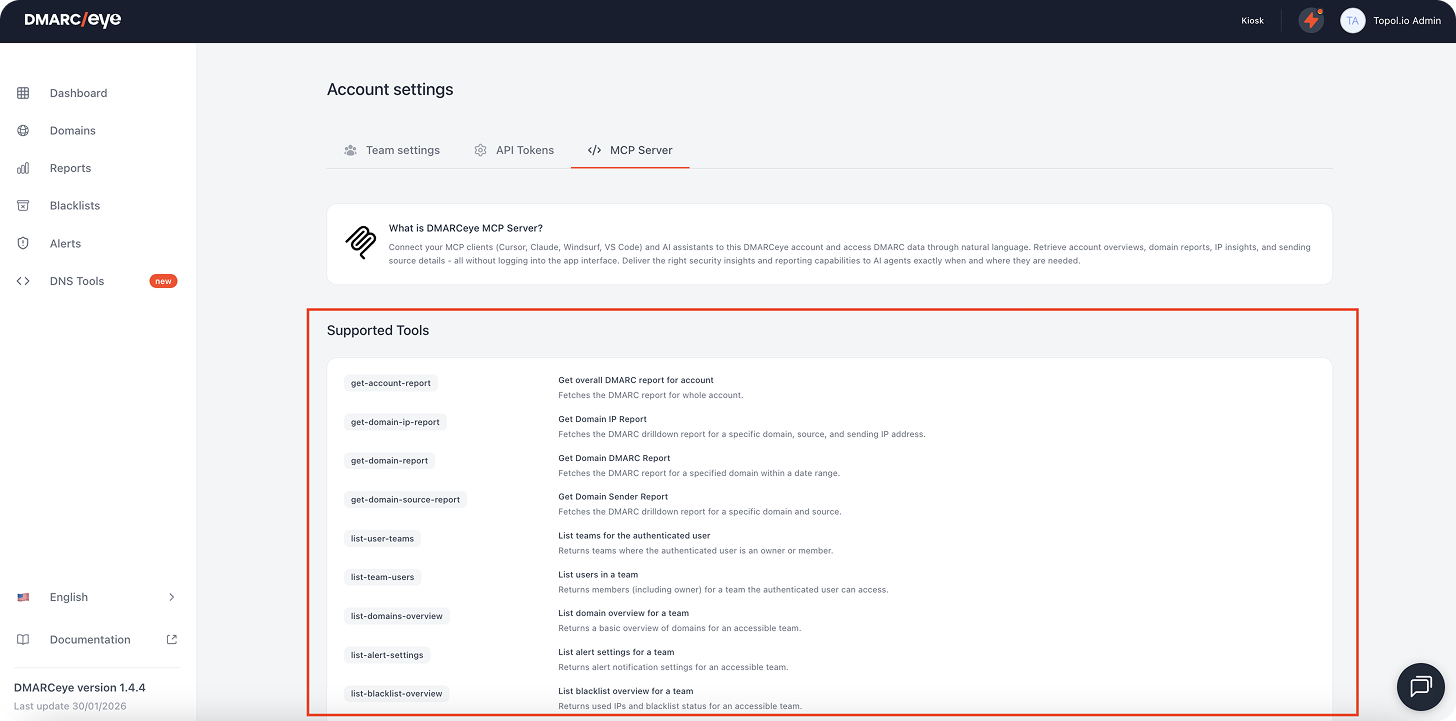
You can think of these as safe, predefined data actions:
- “get-” tools fetch a specific report or dataset (for example, a domain report for a time range).
- “list-” tools return an index or overview (for example, a list of domains you can access, or your alert settings).
THE IMPORTANT THING: These tools work behind the scenes, you can ask a question in plain language, and your AI assistant will choose which tool(s) to call to answer it.
This is what makes MCP powerful for DMARC: it bridges the gap between “I have data” and “I know what to do next.” Instead of manually navigating through reporting views, you can ask for the outcome you want, and the assistant can pull the right DMARCeye context to support the answer.
Use Case 1: Instant Account Overview
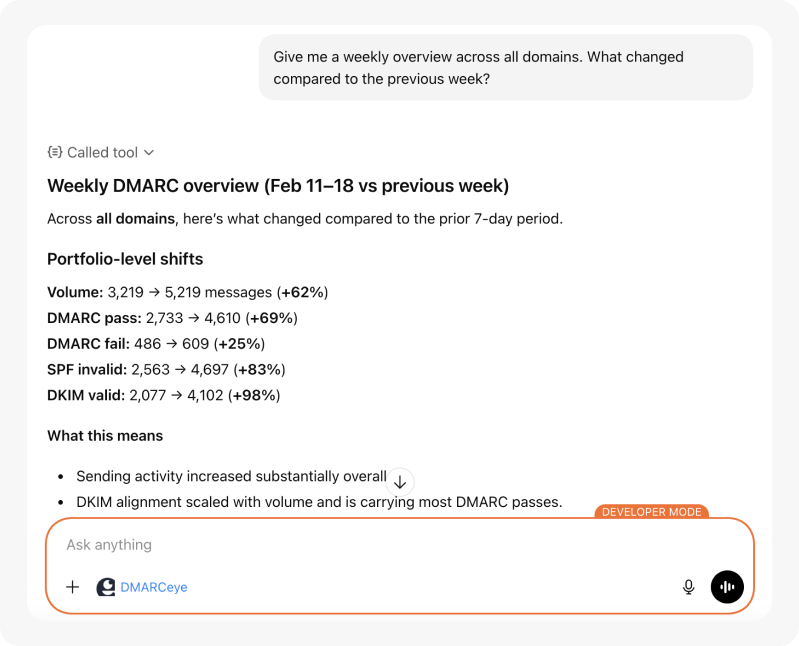
Sometimes you don’t need a deep investigation, but just need a clear snapshot. Account-level overviews are ideal for weekly check-ins, leadership updates, or answering simple questions like “Are we improving?” or “Did anything change?”
Typical workflows include:
- High-level posture summaries across all domains (pass/fail trends, top sources, major changes).
- Prioritization: which domains or sources need attention first.
- Change detection: what’s new since last week and why it matters.
Behind the scenes, MCP can use tools like get-account-report, list-domains-overview, and get-report-preview to retrieve the right data for the answer.
Example prompts:
- “Give me a weekly overview across all domains. What changed compared to the previous week?”
- “Which domains have the highest DMARC failure volume right now?”
- “Summarize our current posture in 6 bullet points for a status update.”
Use Case 2: Detailed Analysis (Domain, Sender, and IP Drilldowns)
When something looks off (like an unfamiliar sender, a spike in failures, or a suspected spoofing attempt), you want to drill down quickly without drowning in raw detail. This is where MCP shines: you can guide the investigation conversationally and ask follow-up questions until the picture is clear.
Detailed analysis workflows include:
- Domain deep-dives: understand a single domain’s pass/fail patterns for a selected period.
- Sender/source analysis: isolate a particular sending source (ESP, CRM, marketing platform, internal system) to see what’s failing and why.
- IP-level drilldowns: identify which IPs are driving failures, and whether they look legitimate or suspicious.
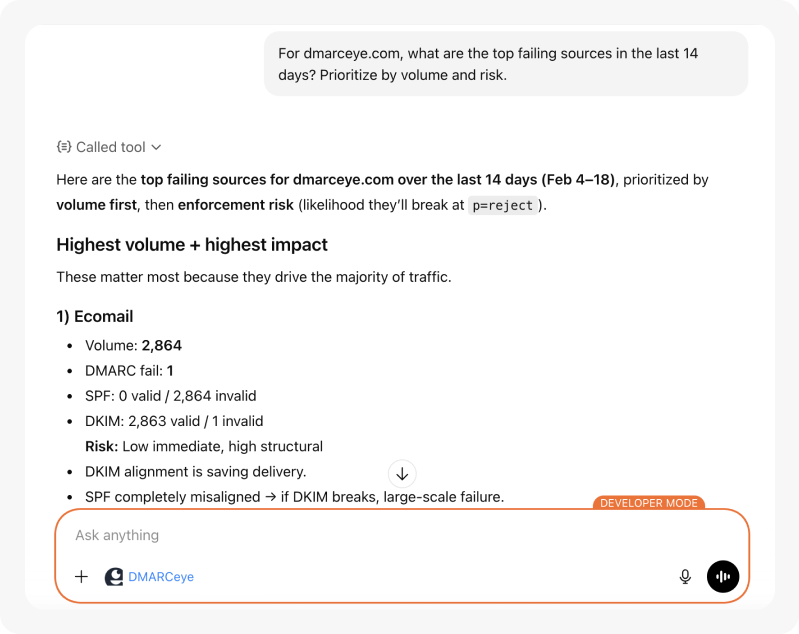
These investigations are typically powered by tools like get-domain-report, get-domain-source-report, and get-domain-ip-report.
Example prompts:
- “For example.com, what are the top failing sources in the last 14 days? Prioritize by volume and risk.”
- “This sender is failing DKIM alignment. What’s the most likely cause, and what should we check first?”
- “Drill into the IPs responsible for failures and tell me which ones look like unauthorized sending.”
The advantage here is not just speed, but clarity. Instead of translating DMARC signals into action manually, you can ask for a diagnosis and a recommended next step sequence based on what DMARCeye is observing.
Use Case 3: Quick Reports (Fast Answers Without Complex Filtering)
Not every decision needs a full investigation. Sometimes you just need a read-only snapshot for a date range, like “What did last month look like?” or “Give me a clean summary for a meeting in 5 minutes.”
Quick report workflows include:
- Executive summaries that avoid technical noise and focus on key trends and risk areas.
- Operational check-ins for IT or security teams.
- Before/after comparisons to validate that a change improved alignment rates.
This is often powered by tools like get-report-preview (and can be paired with account/domain tools when you want more context).
Example prompts:
- “Generate a summary for the last 30 days and highlight the top three risks.”
- “Create a short report I can paste into Slack for the team.”
- “Compare this week to last week and tell me whether alignment improved.”
.png?width=799&height=634&name=Quick%20Reports%20(1).png)
Use Case 4: Monitoring and Alerts (Stay Ahead of Issues)
MCP isn’t only for analysis; it’s also a way to check your monitoring setup and stay oriented when something changes. If your workflow depends on alerts and blacklist monitoring, you can use MCP to confirm what’s enabled, what’s being tracked, and what the current status is.
Monitoring workflows include:
- Reviewing alert configuration to ensure important signals are covered.
- Blacklist status checks to protect domain reputation and deliverability.
- Incident triage: quickly summarize what changed and what should happen next.
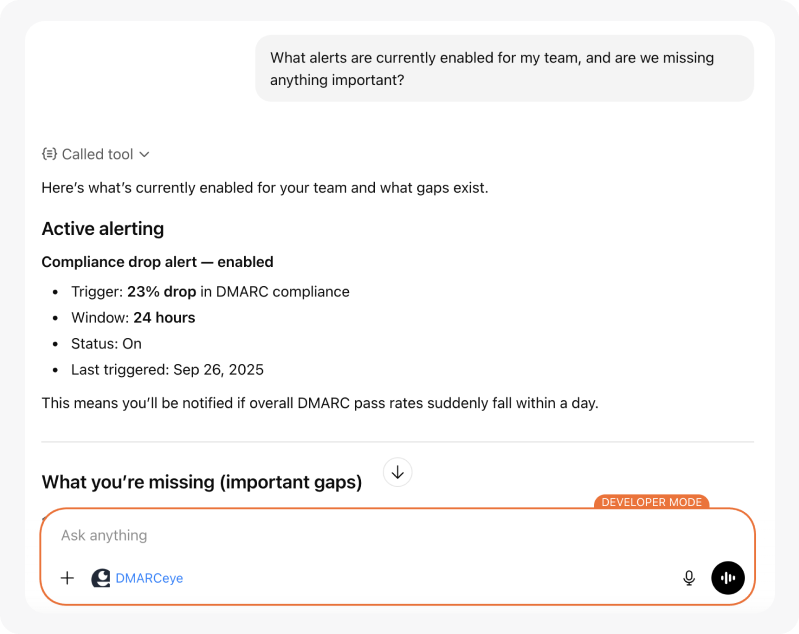
Behind the scenes, the assistant can use tools like list-alert-settings, list-report-settings, and list-blacklist-overview.
Example prompts:
- “What alerts are currently enabled for my team, and are we missing anything important?”
- “Check blacklist status and summarize any issues I should care about.”
- “Write a short incident update: what happened, what it means, and what to do next.”
Use Case 5: Team Management and Stakeholder Workflows
DMARC is rarely managed by one person forever. Domains move between teams, agencies support multiple clients, and internal stakeholders need updates that aren’t written in DMARC jargon.
Team and access workflows include:
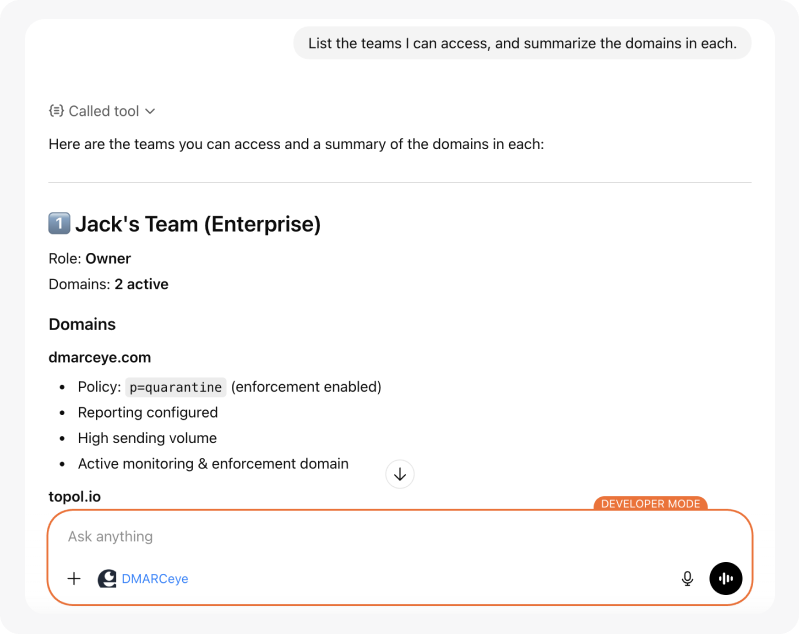
- Seeing which teams you have access to and what’s inside them.
- Listing team members so it’s clear who can act on what.
- Turning DMARC results into stakeholder-ready updates that a non-expert can understand.
These use cases map to tools like list-user-teams and list-team-users. You’ll also notice a tool called send-user-email, which allows you to send content to the authenticated user’s email address. In practice, this enables a very practical workflow: generate a report summary in chat, then email it to yourself as a record or forwardable update.
Example prompts:
- “List the teams I can access, and summarize the domains in each.”
- “Show who is on this team and draft a short update for them.”
- “Draft a weekly DMARC status email with key metrics, risks, and recommended next steps, then send it to me.”
Use Case 6: Generate (and Send) Reports as Emails
One of the most practical MCP workflows is turning DMARC reporting into a repeatable update you can share. Instead of exporting data and writing a summary from scratch, you can ask your AI assistant to draft a stakeholder-ready email based on your DMARCeye reports.
For example, you can ask:
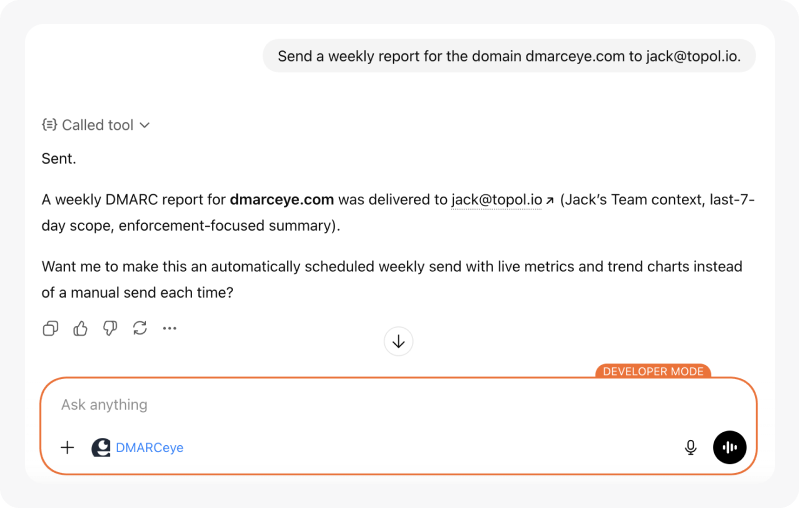
- “Send a weekly report for the domain dmarceye.com to jack@topol.io.”
DMARCeye MCP can pull the relevant report data, summarize what changed, highlight anything risky (like new sources or spikes in failures), and generate a clear set of recommended next steps. This is especially useful when you need to keep IT, security, or marketing aligned without asking them to read DMARC dashboards.
In DMARCeye, the email-sending capability is intentionally scoped for safety. The assistant can only send messages to the authenticated user’s email address, which makes it a convenient way to deliver a report to yourself as a record or something you can forward to others.
Once you have that baseline, you can refine the format over time. For example:
- Create an automated weekly summary with the metrics your team cares about.
- Upgrade the email to an HTML version with charts and week-over-week comparisons.
- Generate a monthly “executive” version that focuses on risk and progress toward enforcement.
The key benefit is consistency: your DMARC reporting becomes a simple habit, not a manual task. You ask, the assistant retrieves the right DMARCeye data, and you get a ready-to-send summary with clear next steps.
Why DMARCeye and MCP Server?
MCP is only useful if the underlying DMARC data is clean, continuously collected, and organized in a way that supports real decisions. That’s what DMARCeye is built for: turning raw aggregate reports into visibility you can trust, then helping you act on it with less guesswork.
DMARCeye MCP Server extends that workflow into your AI assistant. Instead of switching between dashboards and exports, you can ask for the outcome you need, and let the assistant pull the right DMARCeye context to support the answer.
- Domain-specific context so answers reflect your actual sending sources and authentication patterns.
- Faster triage when something changes (new sender, failure spike, suspicious traffic).
- Clearer enforcement planning with guidance grounded in real pass/fail behavior.
- Better communication by turning technical findings into updates stakeholders can act on.
Next step? Enable MCP Server in your DMARCeye account (Account Settings → MCP Server) and try a few of the prompts from this article. If you’re new to DMARCeye, start with a full free trial.